Getting Started
Quick Start
macOS
# 1. Install via Homebrew
brew tap vfarcic/tap && brew install dot-agent-deck

# 2. Launch the dashboard (hooks are auto-installed for detected agents)
# Your previous workspace is restored automatically
dot-agent-deck
Linux
# 1. Install via Homebrew (if available)
brew tap vfarcic/tap && brew install dot-agent-deck

# 2. Launch the dashboard (hooks are auto-installed for detected agents)
# Your previous workspace is restored automatically
dot-agent-deck
Windows
Native Windows is coming soon. For now, install WSL and follow the Linux instructions inside your WSL shell.
Tip: Prebuilt binaries and source builds are also available for macOS and Linux. See all install options.
Once the dashboard is running, press ? inside the app to see all shortcuts. The dashboard is also fully mouse-clickable: a button bar along the bottom exposes the main commands (each labelled with its keyboard shortcut), and cards, tab headers, dialogs, the directory picker, and forms all respond to clicks. See Keyboard Shortcuts → Mouse.
On launch, dot-agent-deck automatically sets up live status, tool, and prompt tracking for the agents it detects — Claude Code, OpenCode, Pi, Codex, and Devin. No configuration is needed. See Troubleshooting if you want to manage this manually.
Launching
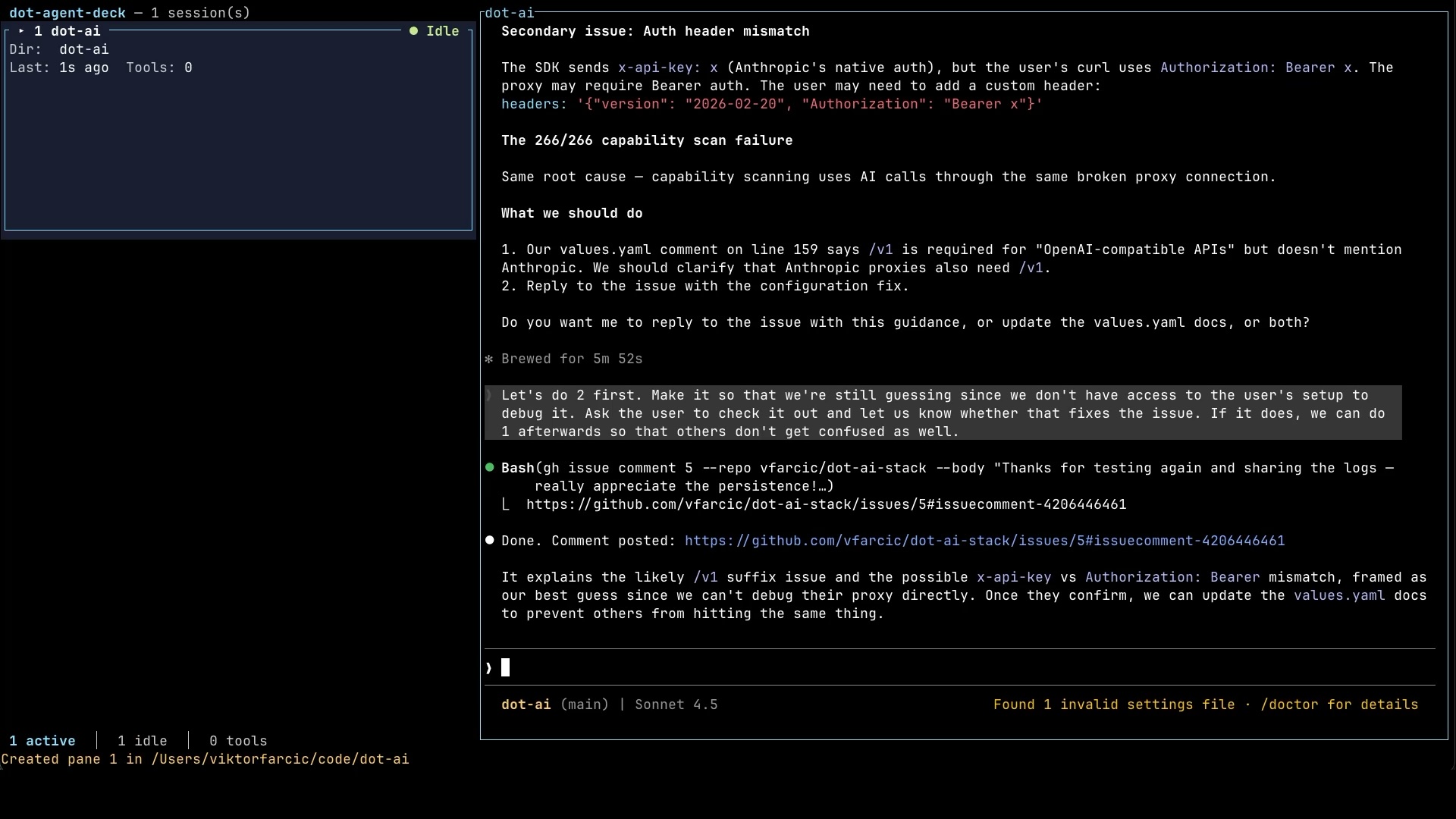
Running dot-agent-deck opens a two-column layout with native embedded terminal panes:
- Left (1/3) — the dashboard, displaying a card grid of agent sessions
- Right (2/3) — agent panes where Claude Code, OpenCode, Pi, Codex, or Devin instances run (stacked by default — only the focused pane is shown, at full height; toggle to tiled with
Ctrl+tto see every pane at once)
How it runs
The deck is a TUI on top of a small background daemon. The first dot-agent-deck invocation auto-spawns the daemon and connects to it over a per-user Unix socket — you don't have to start anything manually, and you don't have to clean anything up. The same daemon backs both local runs and dot-agent-deck connect (remote) sessions; there is no separate "local mode".
The daemon owns the agent processes, which has one user-facing consequence: closing the TUI is a detach, not a kill. Your agents keep running. Reattach with dot-agent-deck later and the dashboard rehydrates with the agents still in their previous state. Detach, sleep, a network drop, or switching machines — none of them stop your agents, because the daemon outlives the TUI in every case. The only thing that stops a running agent is you choosing to upgrade-and-restart the daemon onto a new binary version, and even then you are asked first (see Upgrading).
About 30 seconds after both the TUI and every managed agent are gone, the daemon exits on its own and the socket is cleaned up. Override the window with DOT_AGENT_DECK_IDLE_SHUTDOWN_SECS (in seconds; set 0 to disable idle shutdown and keep the daemon up indefinitely).
Basic Workflow
- Launch the dashboard with
dot-agent-deck - Press
Ctrl+nto open a new pane — pick a directory, give the pane a name, and enter the command to run (typicallyclaude,opencode,pi,codex, ordevin) - Watch the agent's status, tool calls, and prompts update on the dashboard in real-time
- To type into an agent, move keyboard focus into its pane: press
Ctrl+dto enter command mode, then eitherj/k(orDown/Up) to cycle through cards or1–9to jump directly to a card - To close a pane, press
Ctrl+dto leave it, thenCtrl+won the selected card and choose Close in the confirmation. While you're typing inside a pane,Ctrl+wis the shell's ordinary delete-previous-word — it never closes anything. The dashboard tab itself can't be closed.
Tip: The command can be any shell command, but real-time status, tool, and prompt tracking on the dashboard work for
claude,opencode,pi,codex, anddevin.
Tip:
Ctrl+dtoggles: press it in a pane to enter command / navigation mode, press it again to go back to the pane.
Orchestration
Orchestrations let you run a pipeline of AI agents where a designated orchestrator coordinates work across specialist workers — a coder, a reviewer, an auditor, a release agent, or any roles that fit your workflow. Each worker runs in its own pane with its own model and instructions, working independently and reporting back when done. You set the pipeline up once in .dot-agent-deck.toml and the deck handles the rest.
The fastest way to get the config is to let an agent generate it: press Ctrl+d then g on the dashboard, choose Yes, and the agent analyzes your project and proposes a config with suitable roles. Treat the result as a starting point and tune it as you learn what works for your project.
Once you have a config, starting an orchestration tab is the same as opening any other pane:
- Press
Ctrl+n. - Navigate to the project directory that contains
.dot-agent-deck.tomlwith[[orchestrations]]. - Cycle the Mode field (
Left/Rightorh/l) until the orchestration name appears. - Press
Enter— the deck opens a tab with a pane for every role.
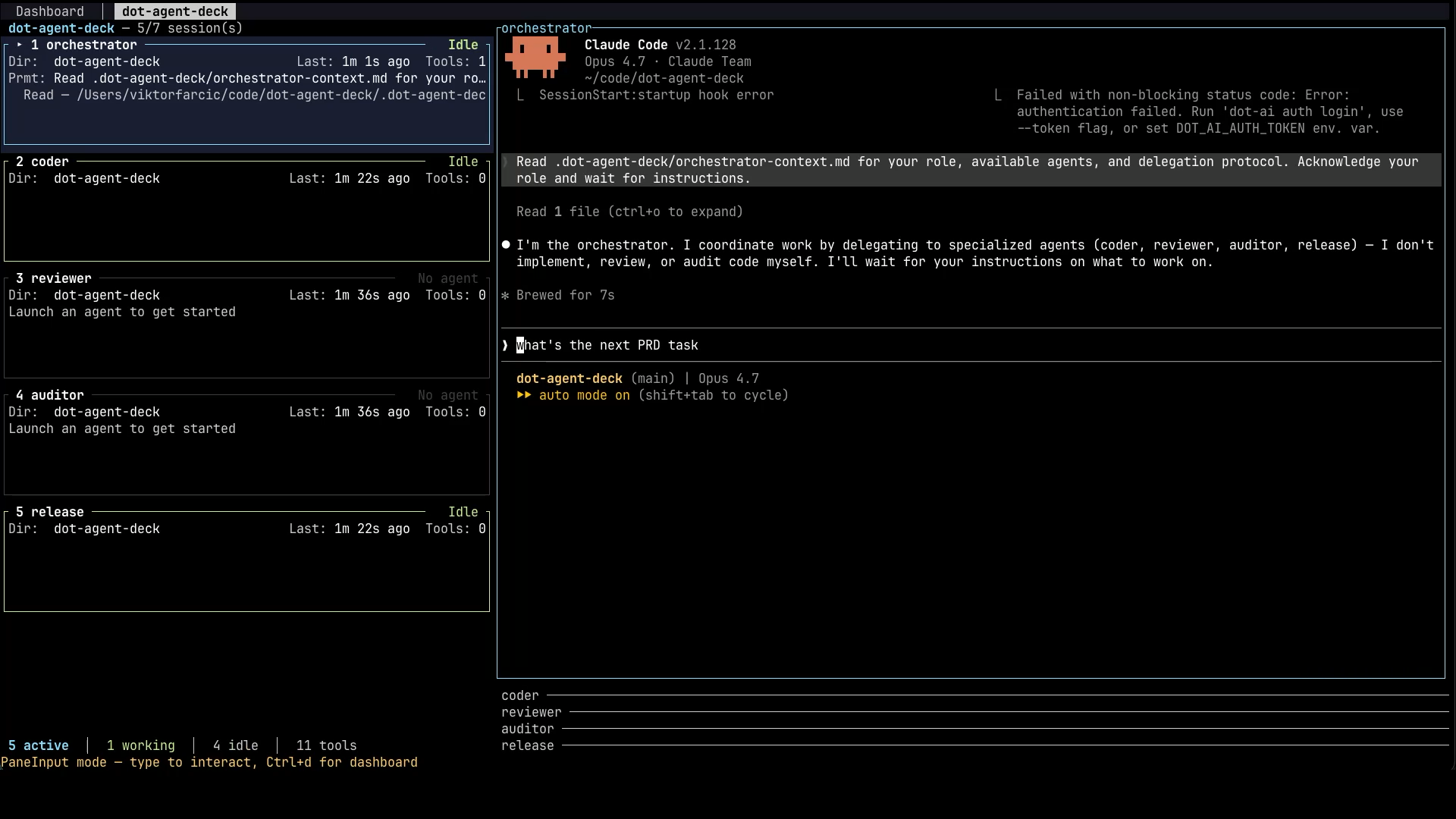
For the full reference, examples, and configuration options, see Orchestration.
Working with Modes
Modes let you pair an agent session with live command output in a tabbed workspace — useful for keeping test runners, log streams, or kubectl output visible alongside your agent. They are defined per-project in .dot-agent-deck.toml.
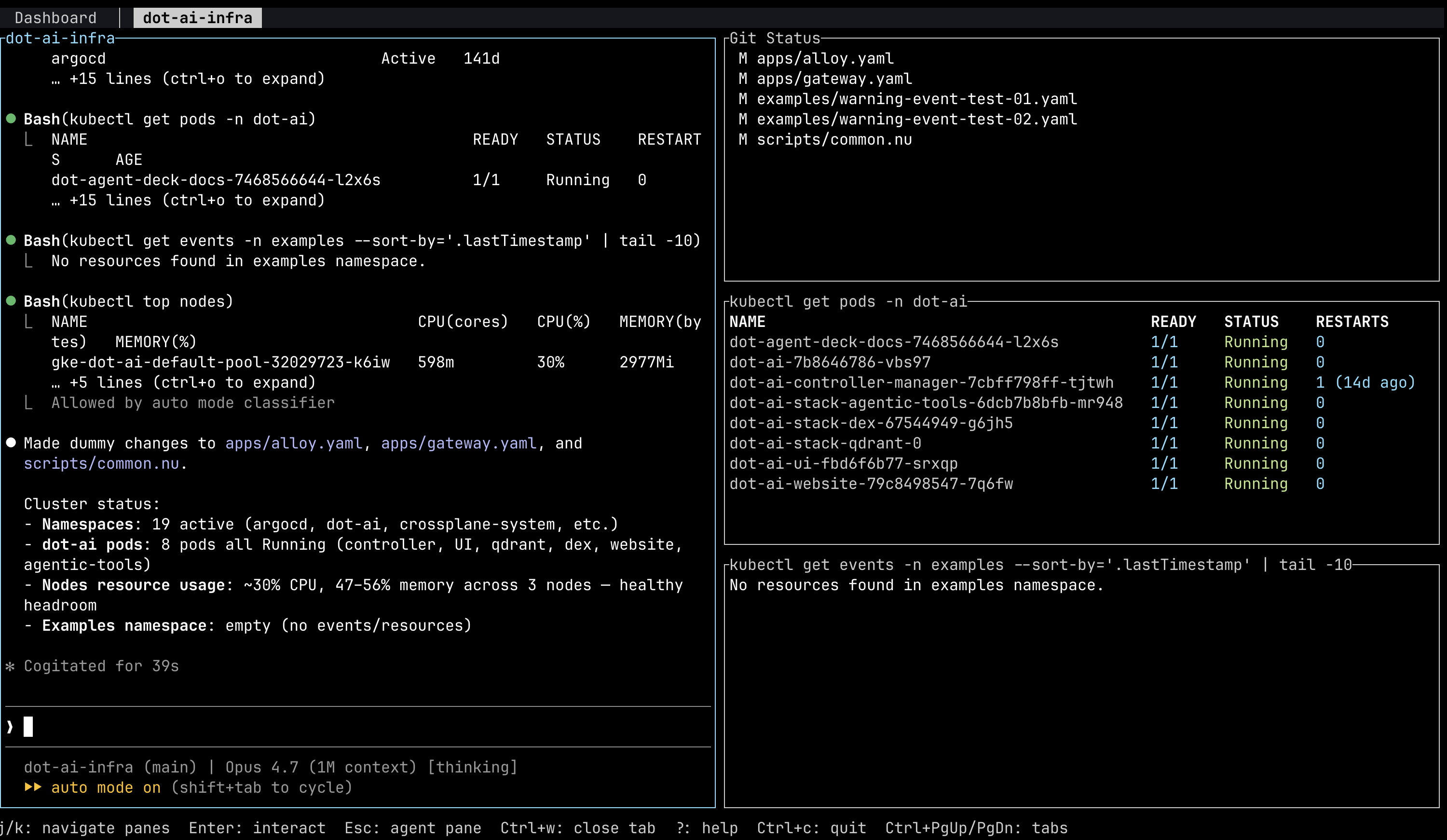
To set one up, let an agent generate the config (Ctrl+d then g), run dot-agent-deck init for a starter template, or write [[modes]] blocks manually. Then press Ctrl+n, navigate to the project directory, cycle the Mode field to your mode name, and press Enter.
For the full configuration reference and more examples, see Workspace Modes.
Dispatching Work in the Background
Dispatcher mode lets you start work without stopping what you are doing. Tell a dispatcher pane what you want started — "work on the search bug" — and it sets up a separate, isolated copy of your repository and puts an agent, or a whole team, to work there. Start several and they run in parallel without colliding with each other or with your working tree.
Press Ctrl+n, navigate to the project directory, cycle the Mode field to dispatcher, and press Enter. Then just ask.
For the full reference — choosing one agent or a team, watching the units, and cleanup, see Dispatcher Mode.
Scheduled Tasks
Scheduled tasks let the daemon spawn an agent (or run a command) on a cron schedule — a nightly review, a recurring digest, a periodic health check — without you being at the keyboard. They are defined globally, so they apply across every project.
The fastest way to create one is to let an agent author it: press Ctrl+n, cycle the Mode field to schedule, and the throwaway pane walks you through building the entry. Or press s on the dashboard to open the Scheduled Tasks manager and choose [Add a]. Every schedule needs a command that launches a claude, opencode, pi, codex, or devin agent — directly (claude, opencode, pi, codex, devin) or via a wrapper like devbox run agent-new — which is what gives the run full status tracking.
For the full reference — cron syntax, the global config file, tab reuse, and supervisor recipes — see Scheduled Tasks.