Session Management
Session Statuses
Each session card shows the agent's current state:
| Status | Meaning |
|---|---|
| Thinking | Agent is reasoning before acting |
| Working | Agent is executing a tool (tool name shown) |
| Compacting | Context window is being compressed |
| WaitingForInput | Agent needs user approval or input |
| Idle | Agent is between tasks |
| Error | Something went wrong |
Cards also display:
- Title row — card number, the pane's display name (or
agent_type · session_idif it hasn't been renamed), an animated status dot, and the status label Dir:— the working directory (basename), shortened with…when it doesn't fitPrmt:— the most recent user prompt(s)- Recent tool calls — the last commands the agent ran
Last:andTools:— elapsed time since the agent's last activity and the total tool-call count, shown in the card's bottom-right border. Narrow cards abbreviate them to2m · 14 tools, then2m · 14; the very narrowest omit them.
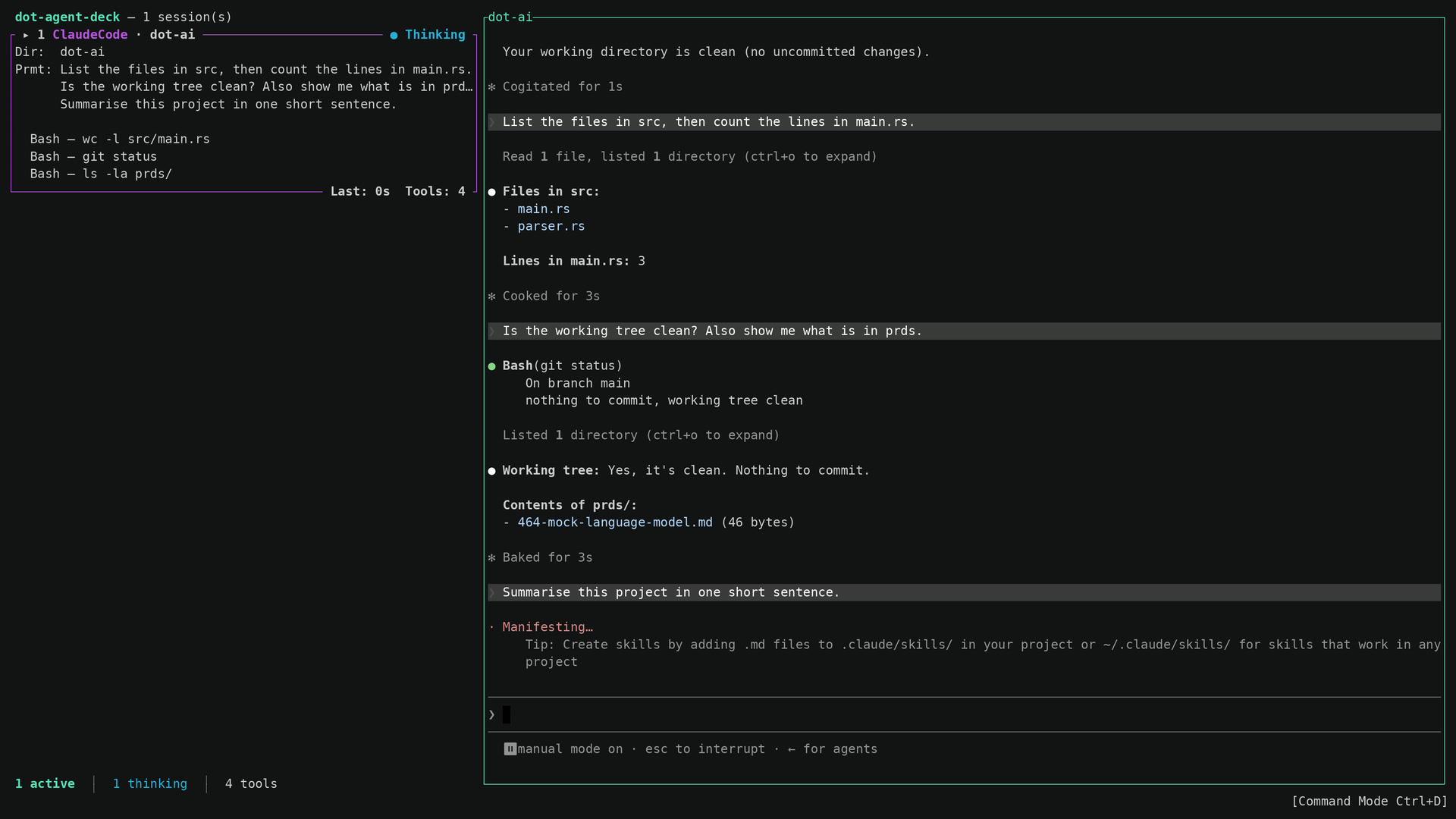
How many prompts and tool calls fit on a card depends on the auto-chosen density, which Agent Deck picks based on how many cards are on the dashboard and how much room is available:
| Density | Prompts shown | Recent tool calls shown |
|---|---|---|
| Spacious | up to 3 | up to 3 |
| Normal | 1 | up to 3 |
| Compact | 1 | 1 |
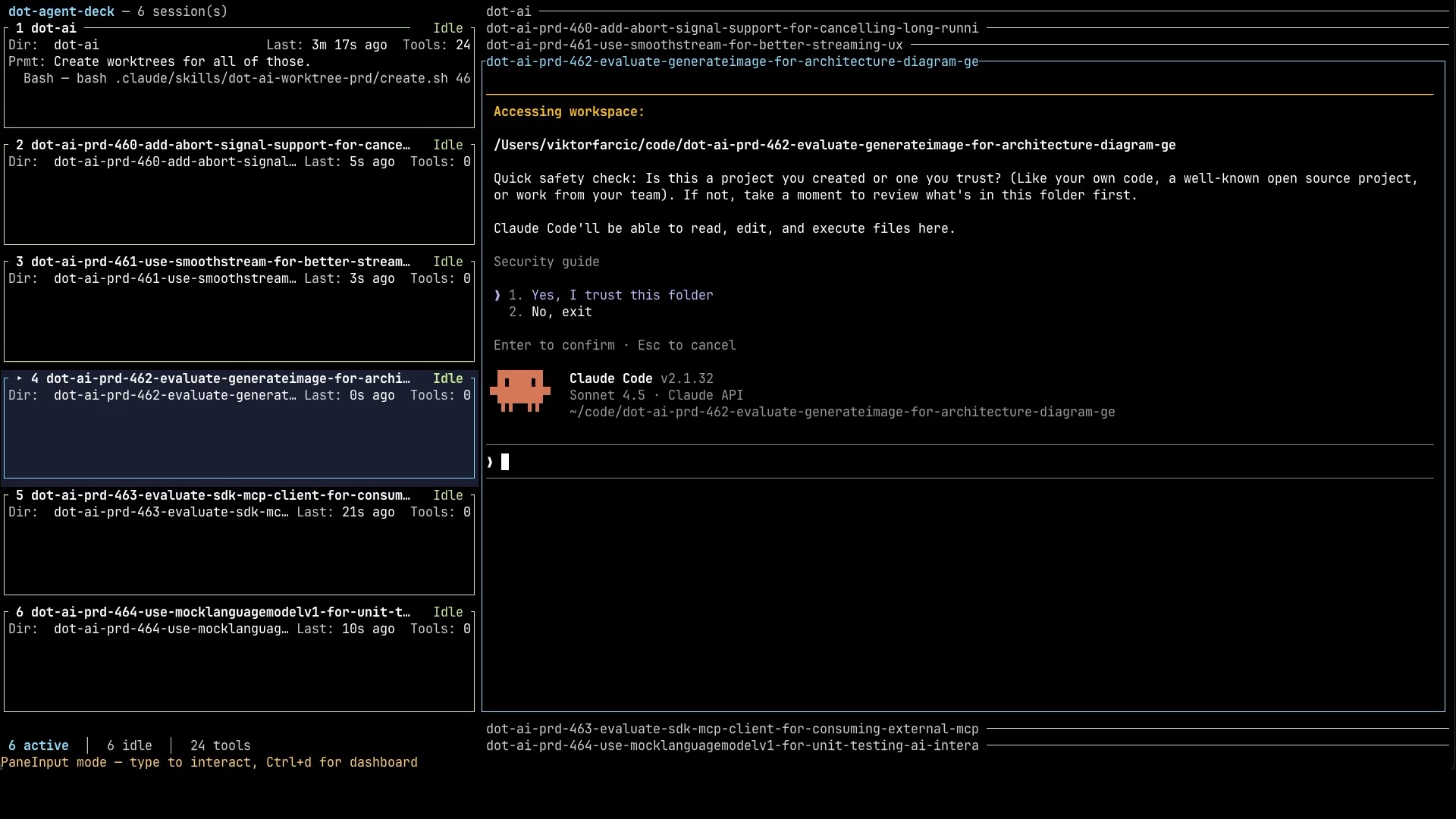
The more agents you run in parallel, the more cards Agent Deck has to fit on the screen, so each card automatically becomes more compact. This is deliberate — scrolling through cards would defeat the point of having a single dashboard.
Resuming Sessions
Agent Deck restores your workspace automatically. There is no flag to pass and no decision to make: every time you launch the TUI — dot-agent-deck locally or dot-agent-deck connect <name> for a remote machine — your previous panes, names, directories, commands, and tabs come back. If you would rather start from an empty dashboard, see Starting Fresh below.
What you get back depends on whether your agents are still running:
- They're still running. When you close the TUI or disconnect, your agents keep running in the background (see How it runs), so coming back brings them up exactly as they were, with their live output. Each card is restored with the agent's real, current state as well — its status (Working, Thinking, WaitingForInput, Idle, and so on), its agent label, the tool it is mid-run on, its tool count, and its recent prompts — so the reconnected dashboard matches what you saw before you disconnected. It does not reset every card to Idle (or show "No agent") and then wait for each agent to emit its next event to become correct. If you reopen your laptop to an agent that has been quietly waiting for input, its card reads WaitingForInput straight away. This is the everyday case.
- They're gone. On a fresh machine, the first launch after a reboot, or after an unexpected shutdown, Agent Deck rebuilds your workspace — panes, names, directories, commands, and tabs — and starts the agents fresh. It restores the shape of your workspace, not an agent's in-progress work; each agent picks its own conversation back up through its own command (for example,
claude --continue).
If there's nothing to bring back, you start on a clean, empty dashboard. If your workspace includes orchestration tabs, you land on the first one so you resume where you left off; otherwise you start on the dashboard for an overview. If a saved directory no longer exists, that pane is skipped with a warning.
Your setup stays up to date
Agent Deck keeps your saved workspace current as you work — after every new pane, rename, tab, and agent change, and again whenever you disconnect — so what it brings back is your most recent setup, never a stale copy from the last time you happened to quit. That is what makes recovery worthwhile after an unexpected shutdown: you return to where you actually were, not to a workspace from days ago.
Mode and orchestration tabs come back too
Mode tabs return in full — the tab and its name, the agent pane and its command, and every side pane. Orchestration tabs return too, with the orchestrator and its prompt, the role panes in their original order, and the start-role cursor where you left it.
In every case only the workspace structure is restored, not an agent's internal conversation. If something in your project's .dot-agent-deck.toml has changed since you last ran it — the file is missing, a mode or orchestration was renamed, or a role was removed — Agent Deck shows a clear warning and brings that pane back as a plain dashboard pane instead of a broken tab.
Starting Fresh
To discard the saved workspace and start from an empty dashboard next time, clear the snapshot:
dot-agent-deck snapshot clear
This clears your saved workspace, so the next launch starts empty. Note that dot-agent-deck remote remove <name> does not do this — it only forgets a remote you had connected to and leaves your saved workspace untouched, so removing an unrelated remote never wipes your setup.
Your saved workspace lives in ~/.config/dot-agent-deck/session.toml.