Workspace Modes
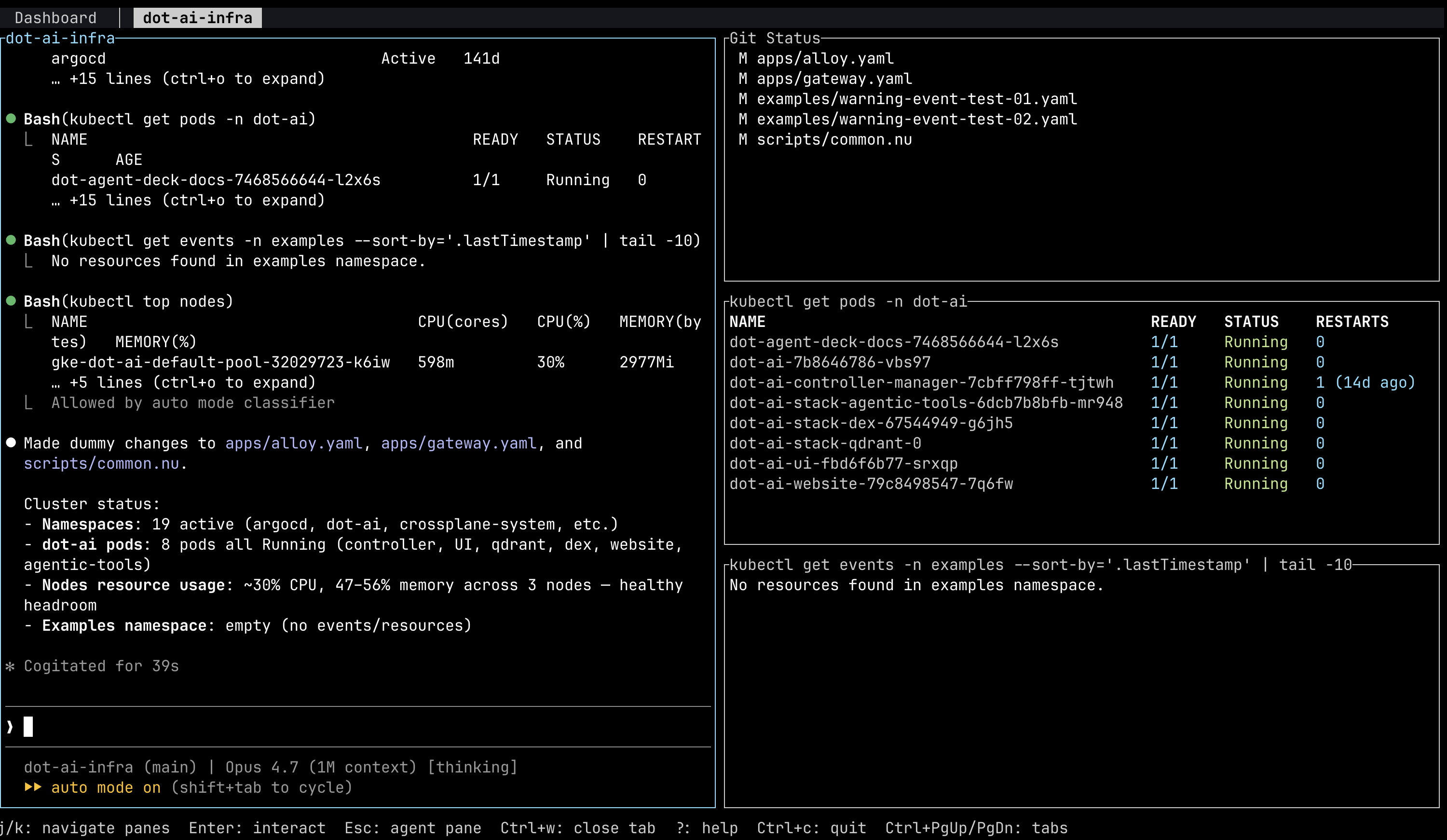
Modes are config-driven workspaces that pair an AI agent with live command output in side panes. Each mode activation creates a new tab — a self-contained workspace with the agent pane on the left (50%) and side panes stacked on the right (50%). Modes are defined per-project in a .dot-agent-deck.toml file at the project root.
Besides the modes you define here, the Mode field also offers built-in options: schedule for authoring a scheduled task, and dispatcher for starting work in an isolated copy of the repo — see Dispatcher Mode.
Concepts
Persistent Panes
Defined in [[modes.panes]]. These run immediately when the mode activates and stay alive for the lifetime of the tab.
By default (watch = true), persistent pane commands are re-executed every 10 seconds via the built-in dot-agent-deck watch subcommand. Write plain commands without watch/follow flags — the system handles refresh automatically. Set watch = false for commands that stream on their own (e.g., kubectl get pods -w, tail -f).
Output appears as the command produces it, so a slow or long-running command paints progressively instead of staying blank until it finishes.
Reactive Panes
Driven by [[modes.rules]]. Reactive panes start empty and populate when the agent executes a command matching a rule's regex pattern.
watch = false(default) — command runs once and the output stays visible.watch = truewith optionalinterval— command re-runs on a timer (in seconds) via the built-indot-agent-deck watchsubcommand, producing clean output without shell prompt artifacts.
Circular Pane Pool
Persistent panes claim the first slots and are never overwritten. Reactive commands cycle through the remaining slots. When all reactive slots are occupied, the oldest is reused. This keeps the workspace bounded while surfacing the most recent output.
Configuration Reference
[[modes]]
| Field | Type | Required | Default | Description |
|---|---|---|---|---|
name | string | yes | — | Display name shown in the tab bar |
init_command | string | no | — | Setup command run once in every pane before its own command (e.g., devbox shell) |
panes | array | no | [] | Persistent pane definitions |
rules | array | no | [] | Reactive command-routing rules |
reactive_panes | integer | no | 2 | Number of reactive pane slots for command routing |
[[modes.panes]]
| Field | Type | Required | Default | Description |
|---|---|---|---|---|
command | string | yes | — | Shell command to run |
name | string | no | command string | Display label for the pane |
watch | bool | no | true | Re-execute command every 10s via built-in watcher. Set to false for commands with built-in streaming (e.g., -w, tail -f) |
[[modes.rules]]
| Field | Type | Required | Default | Description |
|---|---|---|---|---|
pattern | string (regex) | yes | — | Regex matched against agent bash commands |
watch | bool | no | false | Re-run on interval when true |
interval | integer (seconds) | no | — | Refresh interval (only used when watch = true) |
Examples
Kubernetes Operations
A mode for working with Kubernetes clusters. The persistent pane watches pod status continuously, while rules capture kubectl and Helm output as the agent investigates.
[[modes]]
name = "kubernetes-operations"

[[modes.panes]]
command = "kubectl get pods -w"
name = "Pods"

[[modes.rules]]
pattern = "kubectl\\s+(describe|explain)"
watch = false

[[modes.rules]]
pattern = "kubectl\\s+(get|top)"
watch = true
interval = 2

[[modes.rules]]
pattern = "kubectl\\s+logs"
watch = true
interval = 5

[[modes.rules]]
pattern = "helm\\s+(status|list)"
watch = false
Rust TDD
A mode for test-driven development in Rust. Two persistent panes run continuously — one for tests and one for linting. A reactive rule captures build output.
[[modes]]
name = "rust-tdd"

[[modes.panes]]
command = "cargo watch -x test"
name = "Tests"
watch = false

[[modes.panes]]
command = "cargo watch -x clippy"
name = "Lint"
watch = false

[[modes.rules]]
pattern = "cargo\\s+build"
watch = false
Tab Lifecycle
Creating a Mode Tab
- Press
Ctrl+nto start the new-pane flow. - Select a directory that contains a
.dot-agent-deck.toml. - In the unified form, use
Left/Right(orh/l) to cycle the Mode field to your desired mode. - Fill in the agent name and command, then press
Enter. - A new tab opens with the agent on the left and side panes on the right.
Switching Tabs
The tab bar appears at the top when more than one tab is open. To cycle between tabs:
Ctrl+PageDown/Ctrl+PageUp— work from anywhere, including while typing in an agent pane.Tab/Shift+Tab(orLeft/Rightarrow keys,h/l) — only in command mode; pressCtrl+dfirst, otherwise the keystroke is sent to the agent.
See Keyboard Shortcuts for all keybindings.
Closing a Mode Tab
From command mode, press Ctrl+w on a mode tab and choose Close in the confirmation to tear down the entire workspace — the agent and all side panes are stopped. The dashboard tab cannot be closed.
Jumping to a Mode Tab from the Dashboard
From command mode, press the card number (1–9) of the mode-tab agent, or select its card with j/k and press Enter. The dashboard switches to the mode tab and focuses the agent pane.
Side Pane Interaction
Side panes in a mode tab support focus, selection, and direct interaction.
Focus & Navigation
A thicker border (┃ rather than │) marks the currently focused pane. Use j/k (or Down/Up) to cycle focus through all panes — agent and side panes — in a continuous loop. Press Esc to jump focus back to the agent pane. You can also click any pane to focus it.
The focused pane's border turns cyan only while you are typing into it. In command mode every border — focused pane included — shows its agent's status color instead: green for working, blue for thinking, yellow for waiting on you, red for an error, gray for idle. So the border's weight tells you which pane Enter / Ctrl+d will drop you into, and its color tells you whether your keystrokes are reaching it yet.
The border is not the only signal: a chip at the left of the bottom bar names the current mode — COMMAND or TYPING — in the same place on every tab, the focused pane carries a cursor only while you are typing into it, and entering command mode dims that pane and briefly overlays a COMMAND MODE · Ctrl+D to type banner. See Which mode you're in.
Reading a Pane in Command Mode
Command mode is the safe resting state — the one mode in which a stray keystroke cannot reach an agent — and you can read in it. Pane content stays fully readable (dimmed, never blanked), and the focused agent pane scrolls there, by wheel and by PageUp / PageDown, just as side panes do in any mode. The wheel is never forwarded to the agent's mouse protocol in command mode, so a full-screen TUI running in the pane cannot scroll under you while you read.
Typing Into a Pane
Press Enter on a selected side pane to type directly into the pane's shell — run commands, send input, interact with running processes. Ctrl+c sends SIGINT to the pane's process, and Ctrl+d returns you to command mode. If no side pane is selected, Enter focuses the agent pane instead.
This is the mode the bottom-bar chip calls TYPING, and the only one in which the focused pane shows a cursor. PageUp / PageDown belong to the program running in the pane here — they are sent through to it rather than scrolling the deck's view.
Scaffolding
dot-agent-deck init
Run dot-agent-deck init inside a project directory to generate a .dot-agent-deck.toml template:
cd your-project
dot-agent-deck init
The generated file contains a commented example you can edit. It will not overwrite an existing config.
Agent-Assisted Config Generation
When opening the new-pane form (Ctrl+n) for a directory without a .dot-agent-deck.toml, a yellow tip appears: Tip: press g on dashboard to create modes.
From the dashboard, press g on an agent's card to open a dialog with three options (navigate with arrow keys, confirm with Enter):
- Yes — sends a prompt to the agent asking it to analyze the project, propose a config, and write it after your approval.
- No — dismisses the dialog; the hint stays on the card.
- Never — suppresses the hint permanently for this directory.
After the agent creates the file, press Ctrl+d to leave the pane, Ctrl+w and Close to close it, then Ctrl+n to create a new one and select your mode.
To disable the hint globally: dot-agent-deck config set auto_config_prompt false.
Config Validation
Run dot-agent-deck validate to check your config for issues:
cd your-project
dot-agent-deck validate
This checks regex syntax, duplicate mode names, and mismatched watch/interval settings.
dot-agent-deck watch
A built-in command that re-executes a shell command at a fixed interval with clean terminal output, similar to the Linux watch utility. This is used internally by reactive watch rules but can also be run standalone:
dot-agent-deck watch --interval 2 "kubectl get pods"
The command clears the screen between executions and shows output as it is produced. Press Ctrl+C to stop.